How to connect to your website on
the ITMI server in Dreamweaver.
Step One
With your
Macromedia Dreamweaver Program Open—select
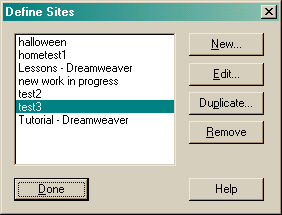
either the new site or define site option. (Execute by selecting
Window->Site>[New or Define Site]). The
following screen should appear.
Step Two
For
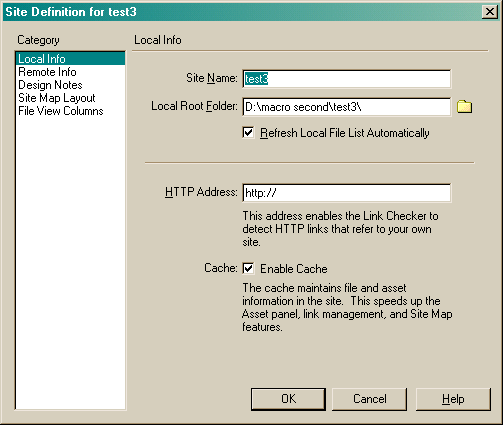
purposes of this tutorial I will use the test3 site. For this example I will
select test2 and then hit the enter button. The following screen should then
appear (regardless of entering new site or define site)
Step 3
The big
key to being able to view your website files on the remote server is that you
have to know and enter a few certain key information terms and then your access
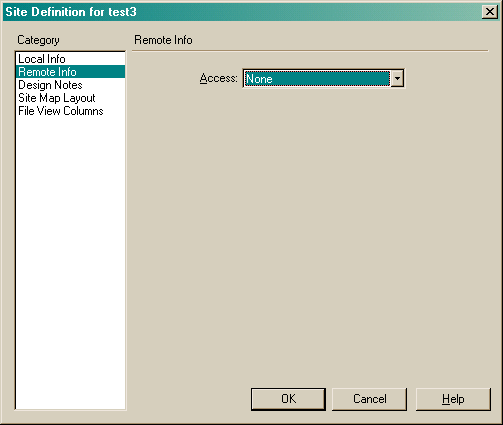
will be successful. To start this process select the
REMOTE INFO option on the screen that was shown in the last step. If successful
your screen will look like the following:
Step Four
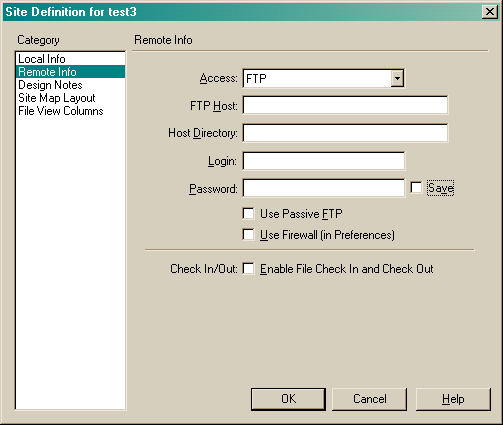
Select
from the Access drop down button the FTP option. The screen should change to
look like the following:
Step Five
– Entering in the correct server connection information.
Here is
the main challenge with remote access—you need to enter in all of the
information as shown in the example below—EXCEPT FOR THE HOST DIRECTORY
INFO---WHICH SHOULD BE THE EXACT NAME OF YOUR WEBSITE FOLDER THAT YOU CREATED
ON THE ITMI SERVER. Refer to the following example below:
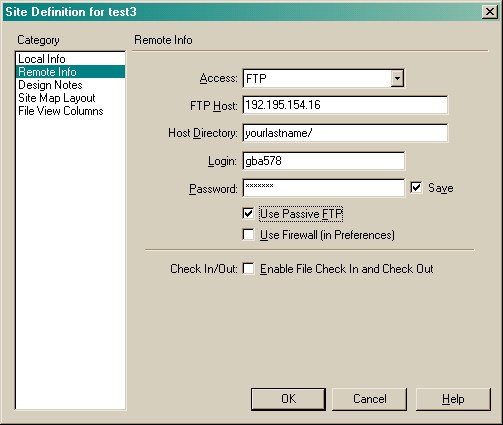
Upon
completion of entering this information select OK, after which the define site
screen will reappear and then you can just select the DONE button. Afterwards
your screen should like the following:
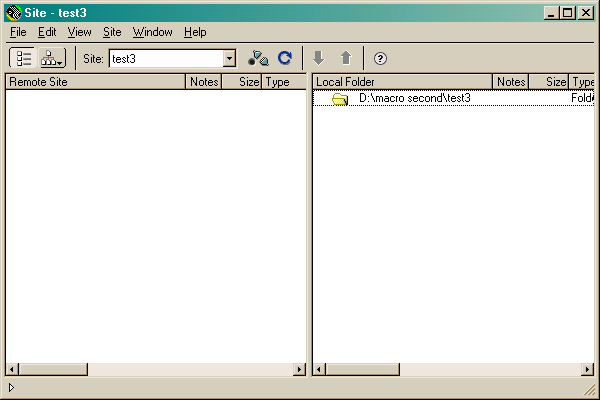
However at
this point you are still not connected to the ITMI server—you have only set up
the configurations. In order to connect you must hit the connect button—it is
the one right next to the test3 drop down button that has one black dot and two
green triangles. After you press that button a connecting message will appear
and if successful the following screen will appear:
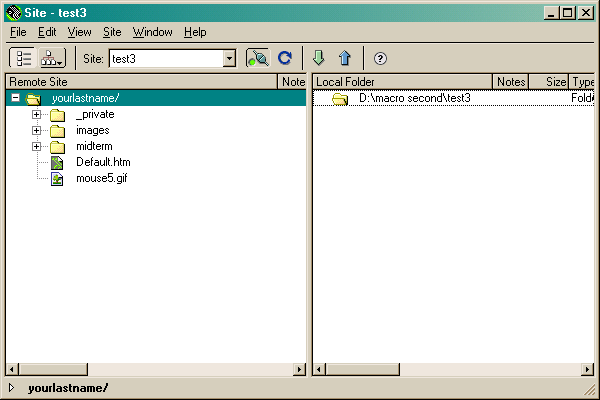
If this
screen appears your attempt was successful and the ITMI remote files will
appear to the left—and the files on your local computer will appear to the left
(in this example I had no files created). If you wish to upload or download webpages select the green and blue arrows.